🧑‍💻 BEGINNER-FRIENDLY Step-by-step guide + real tools

How to Create a Website in 1 Day

In this guide, you’ll learn exactly how to go from “no website” to a live, professional site – with clear steps, screenshot ideas, and links to the hosting & AI tools I personally recommend.

✅ Works for blogs, business sites & stores 🔒 No coding required (HTML option included if you want it)

✨ Recommended: Fast Hosting + Free Domain

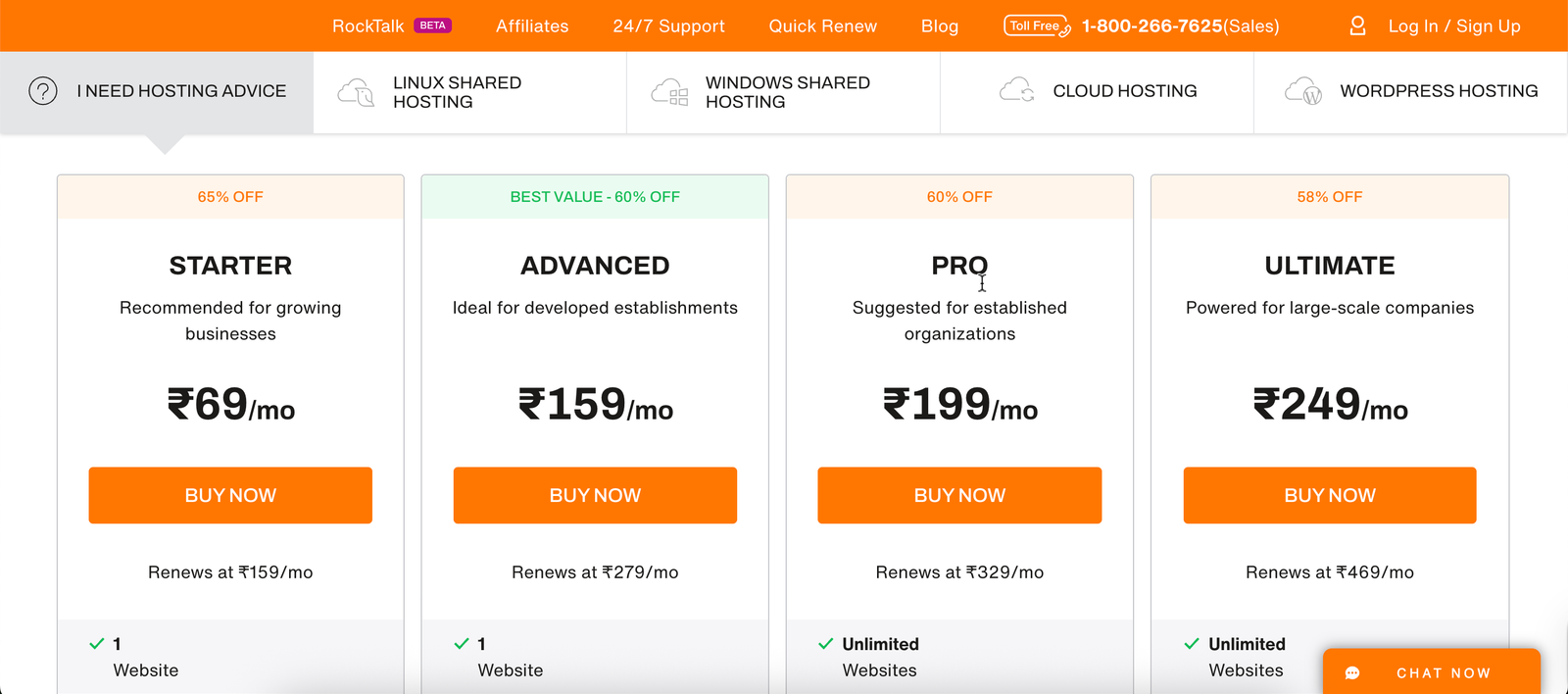
Before you start designing, lock in a good hosting plan. I personally recommend Bigrock – it’s beginner-friendly, fast, and comes with a free domain on most plans.

1-click WordPress AI Website Builder included 24/7 live chat
👉 Claim Your Hosting Deal

Overview: 3 Ways to Build a Website

There are three popular ways to build a website. Pick the one that matches your time, budget, and tech comfort:

  • Method 1 – Website Builder: Use a drag-and-drop builder (e.g. Hostinger Website Builder, Bigrock, CrazyDomains for stores).
  • Method 2 – WordPress + Hosting: Most flexible and popular; still beginner-friendly.
  • Method 3 – Pure HTML/CSS: Hand-coded website, best if you want to learn web development.

In this guide we’ll use WordPress as the “main path”, show where to use AI builders, and then include an HTML example at the end.

⚡ Fastest Route: Let AI Build Your Website

If you just want something beautiful online today, use an AI website builder. Describe your business, pick a style, and the AI will generate a full website you can edit.

Try it here: Bigrock AI Website Builder
Step 1

Decide What Kind of Website You Need

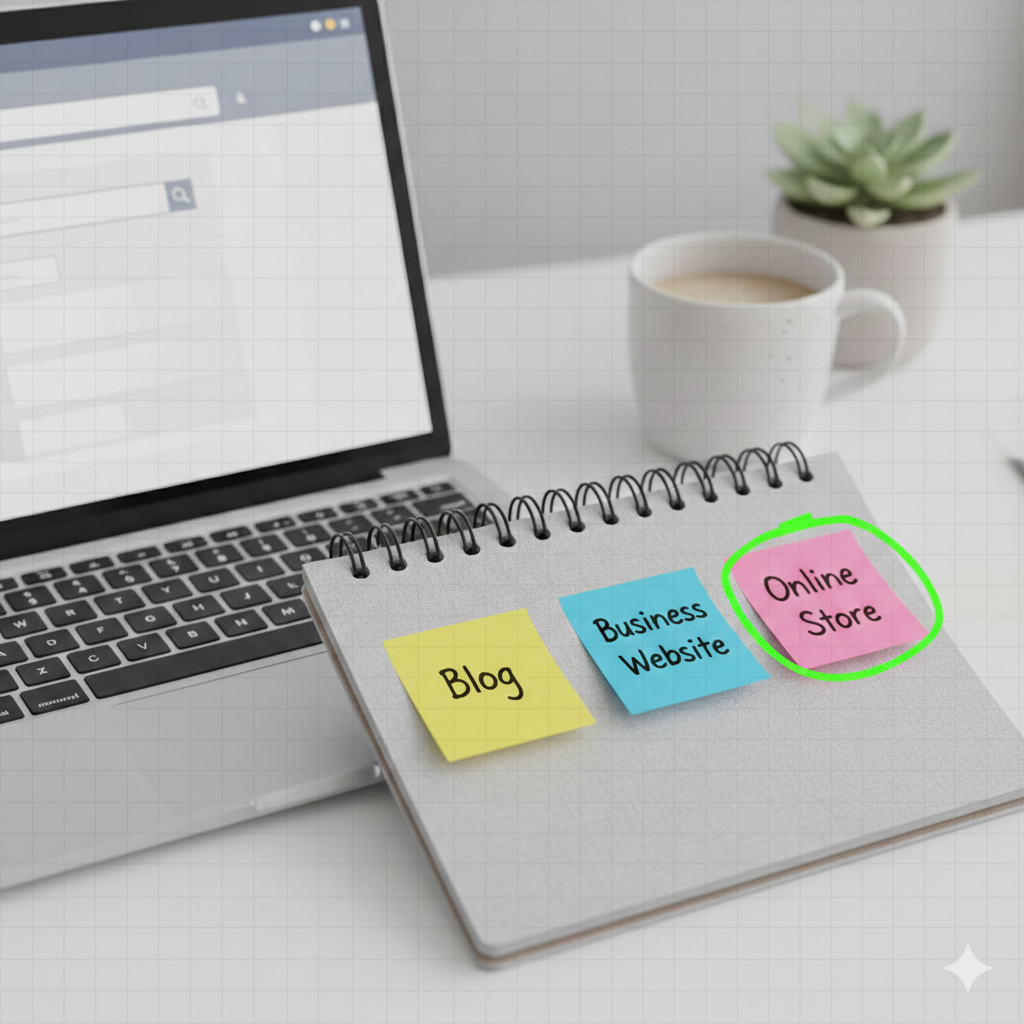
Clarity beats confusion. Before you buy anything, decide your primary goal:

  • Blog / Personal Brand: You’ll publish articles and build an audience.
  • Business Website: Show services, portfolio, contact form, WhatsApp chat.
  • Online Store: Sell products with checkout & payment gateway.
idea

Website affiliate image

Step 2

Pick a Domain Name & Hosting

Your domain name is your website’s address (like mybrand.com). Hosting is the server where your website files live. Choose a short, memorable domain and a reliable hosting company.

  • Search for your domain – try your brand name or a keyword + city.
  • Avoid hyphens and weird spellings (they’re hard to remember).
  • Choose a hosting plan that includes SSL (HTTPS) and 1-click installs.

👉 I recommend starting with Bigrock’s shared or WordPress plan. It’s affordable, fast, and perfect for beginners.

🔐 Check Hosting Plans & Get Free Domain
Idea

Website affiliate image

Step 3

Connect Domain, Install WordPress (or Use AI Builder)

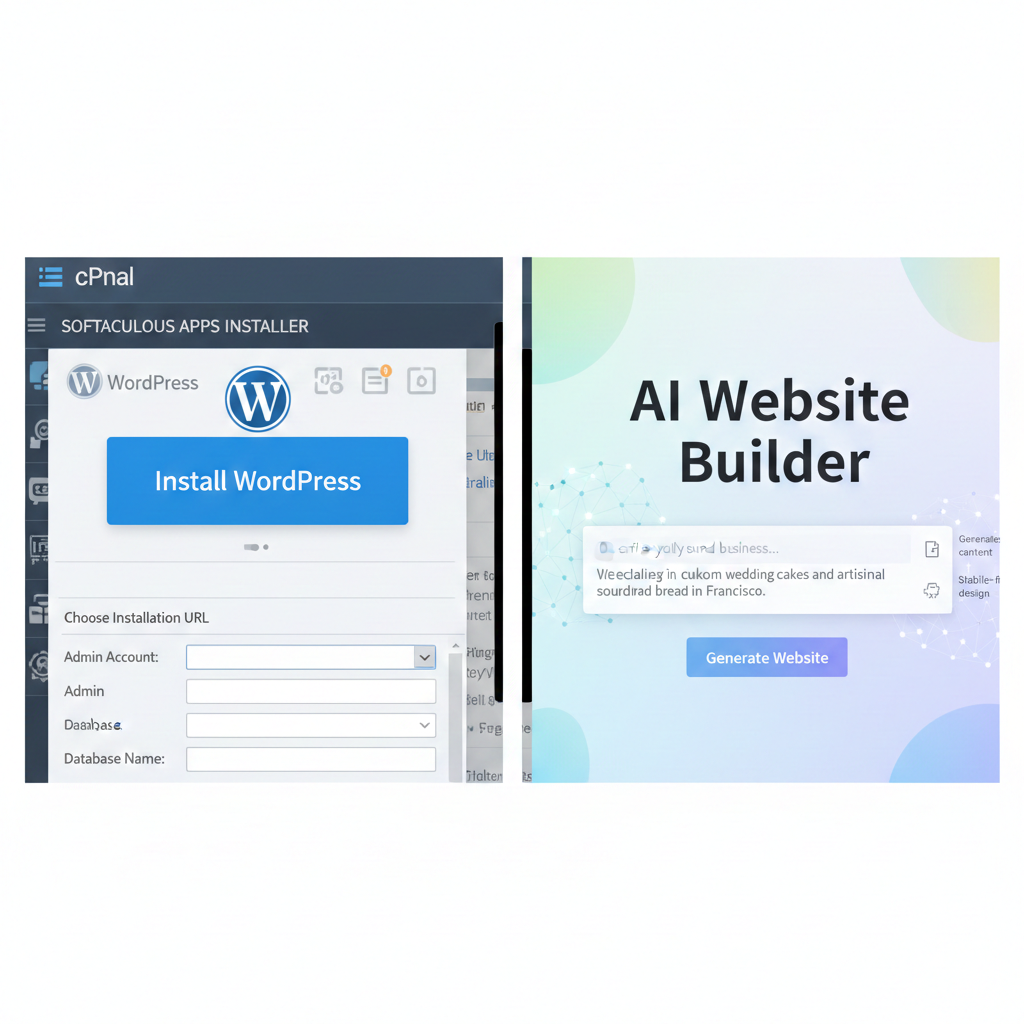
After purchase, your hosting dashboard will guide you through connecting your domain and installing WordPress. On most hosts it’s literally a few clicks.

  • Log in to your hosting dashboard.
  • Choose “Auto Installer” → WordPress.
  • Set your admin username & password and click Install.

Don’t want to touch WordPress at all? Use the built-in AI Website Builder instead: describe your business, choose a design style, and let AI create your starter site automatically.

🤖 Try AI Website Builder (Fastest Option)
Idea

Website step 3 image

Step 4

Choose a Theme & Design the Layout

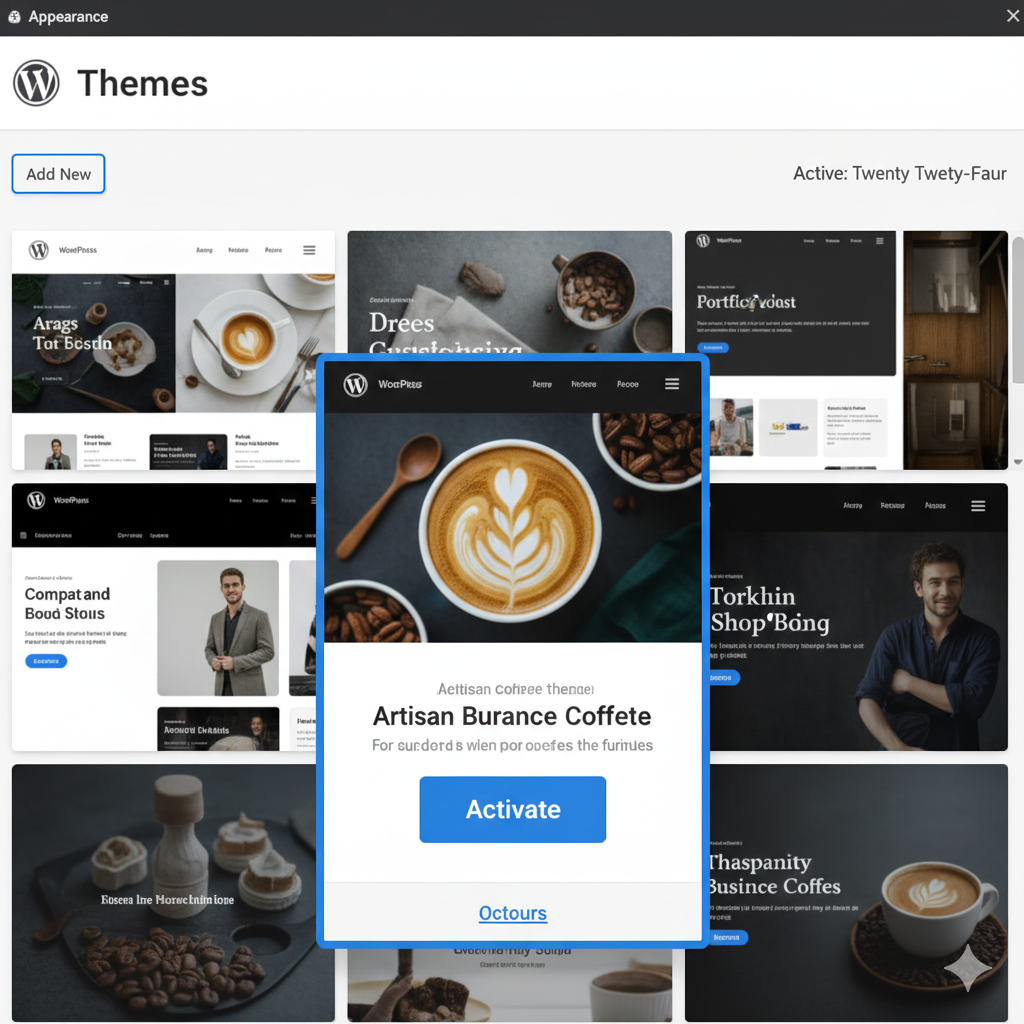
Your theme controls how your website looks. Choose a modern, mobile-friendly theme and then customize it:

  • Install a lightweight theme (like Astra, Blocksy, Kadence, etc.).
  • Set your brand colors, logo and fonts in the Customizer.
  • Plan your navigation: Home, About, Services, Blog, Contact.
Idea

Website step 4 image

Step 5

Create Essential Pages & Content

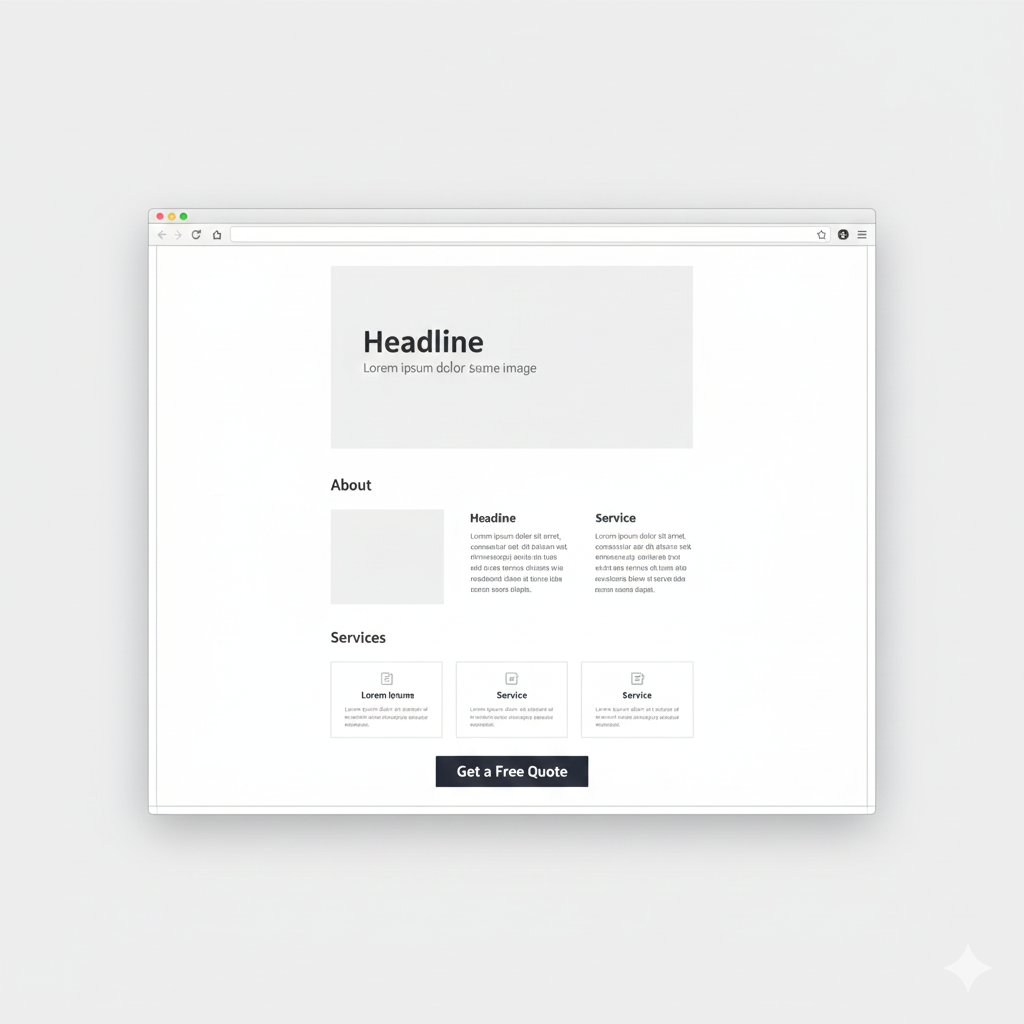
Now it’s time to add real content. At minimum, create these pages:

  • Home: Clear headline, what you do, main call-to-action.
  • About: Your story, why people should trust you.
  • Services / Products: Explain what you offer with benefits & pricing.
  • Contact: Form, email, WhatsApp, social links, map (if local).

Use short paragraphs, bullet points and clear buttons. Every page should guide visitors to either contact you, buy, or join your email list.

Screenshot idea

Website step 5 image

Step 6

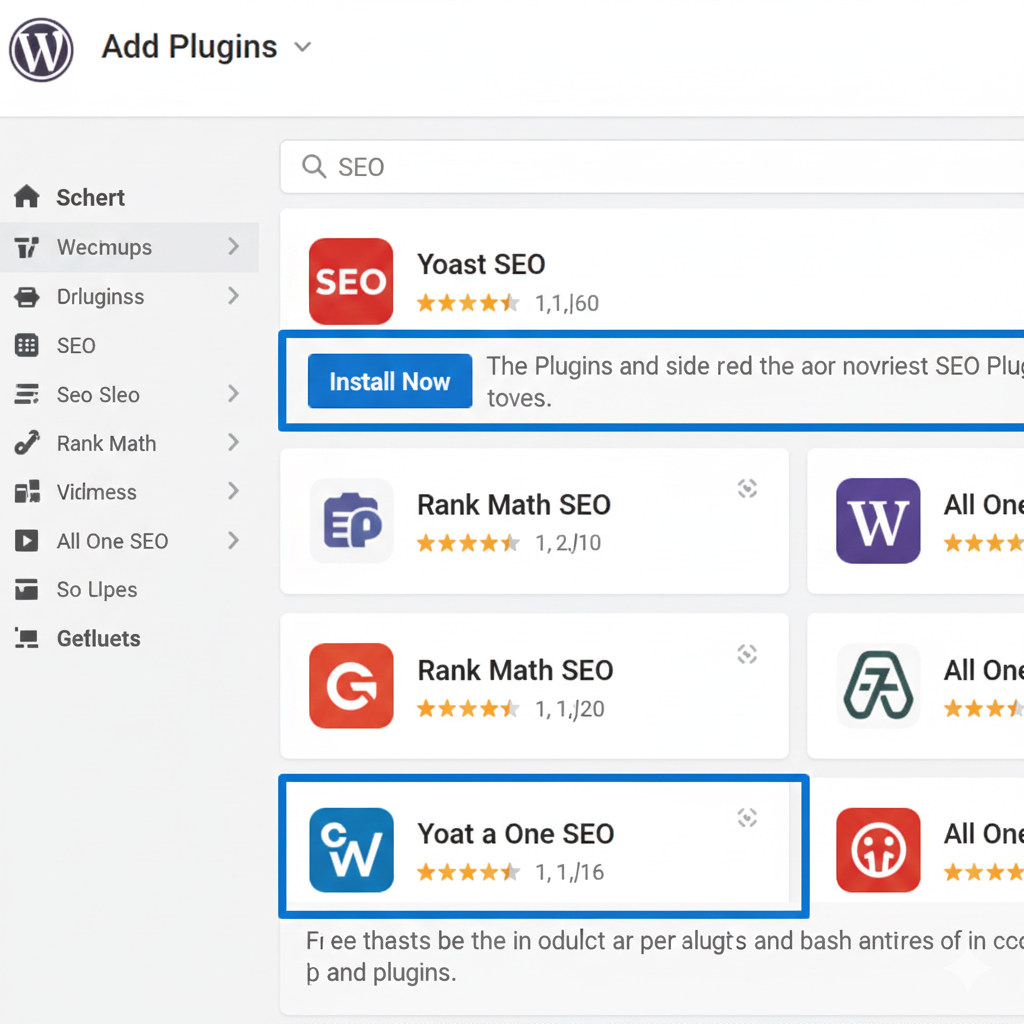
Add Apps / Plugins & Basic SEO

To make your website powerful and discoverable, add a few essential plugins:

  • SEO plugin (Rank Math / Yoast) for meta titles & descriptions.
  • Cache plugin for speed (if not built into hosting).
  • Contact Form plugin or form block.
  • Analytics (Google Analytics, Search Console).

Fill in your SEO titles with your main keyword + brand name, and write simple meta descriptions that explain what visitors will get if they click.

Screenshot idea

Website step 6 image

Step 7

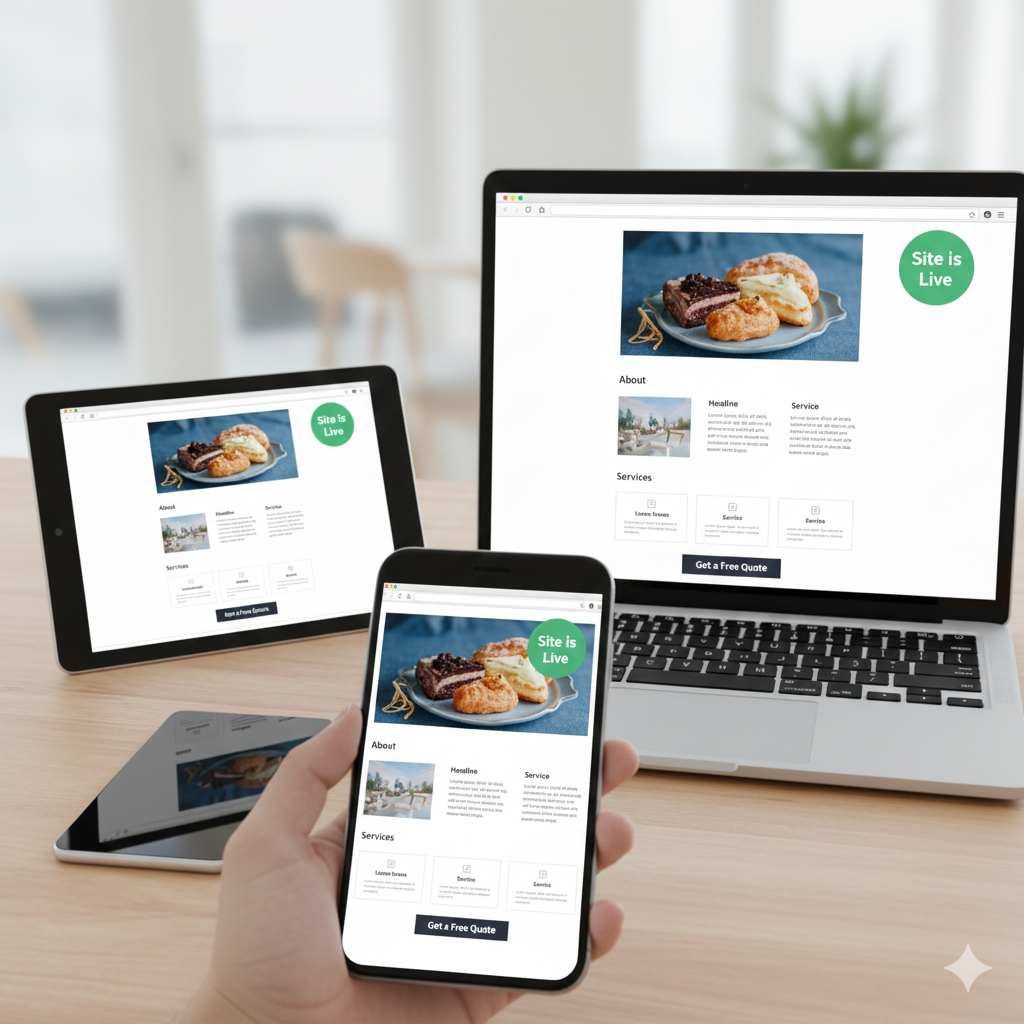
Preview, Test on Mobile & Launch

Before going live, do a quick final check:

  • Open your site on mobile, tablet and desktop – does it look good everywhere?
  • Click every button and link – do they go to the right place?
  • Test your contact form and WhatsApp / email links.

Once everything works, hit Publish and share your website with friends, social media followers, and customers.

Idea

Website step 7 image

Bonus

Want to Code It Yourself? Start With Simple HTML

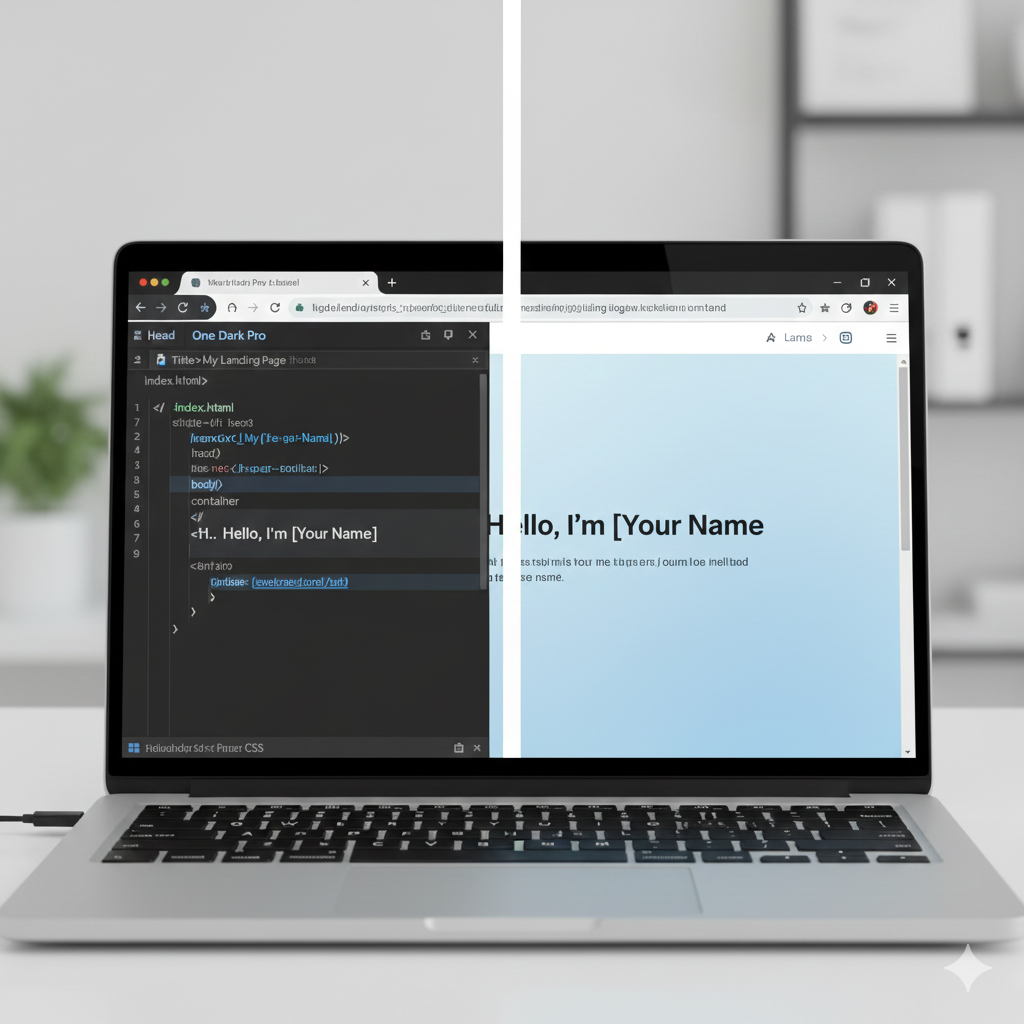
If you want to learn web development, you can build a basic one-page site using pure HTML & CSS, then upload it to your hosting account.

Basic flow:

  • Create an index.html file in a code editor.
  • Add your HTML structure (header, hero section, services, contact).
  • Upload the files to your host’s public_html folder via File Manager or FTP.
Screenshot idea

Website step 8 image